


Voice Recorder Audio Sound MP3
4.63.61K Reviews
App Specs
- Version
- 2.4.9.3
- Updated On
- License
- Free
- Downloads
- 10,000,000+
- Developer
- Video Screen Recorder, Voice Audio Editor, Cut MP3
- Categories
- Music & Audio
- Platform
- Android, iOS
Screenshots
 Analysis by AppCompare
When I need to capture a thought before it disappears, I want to start recording quickly and deal with the file later. That is the practical appeal of Voice Recorder Audio Sound MP3: it is a free audio app built around recording voice, with a simple path from pressing record to keeping or sharing a clip. I find it most useful when a phone note would lose tone or detail, but a full audio-editing setup would slow me down.
The app sits in the music and audio category, and its developer is Video Screen Recorder, Voice Audio Editor, Cut MP3. It has a 4.6 average from around 97,000 ratings, with over 10 million installs. Those figures suggest it has found a broad audience, though popularity alone does not tell me whether it suits a particular recording job. The useful question is whether its straightforward workflow fits the way you capture and handle sound.
Start with the recording you actually need
Before opening a recorder, I try to decide what the audio is for. A quick reminder can be short and compressed without much consequence; a class explanation or interview may need clearer speech and enough context to make sense later. That distinction matters here because the app is approachable, but recording quality still depends on the room, the phone’s position, and the choices you make while capturing sound.
For a useful voice memo, I place the phone steadily on a surface or keep it close enough to hear speech clearly, rather than moving it around while talking. If I am recording someone else, I check that the microphone is not covered by my hand or a case. These small habits often matter more than fiddling with settings. A recorder can preserve what it receives, but it cannot remove a noisy room or rescue words that were too quiet.
The app is free to download and is rated for Everyone. It supports Android 6.0 and later, and the current version is 2.4.7.1. Optional in-app purchases range from $1.99 to $39.99 per item, so I would check the purchase screen carefully if I reach a feature that asks for payment. The basic appeal is easy to understand without treating the app as a promise of professional studio results.
From pressing record to using the file
Downloading and setting up the Voice Recorder Audio Sound MP3 app was a breeze. Available on both Android and iOS, it’s a straightforward install from the respective app stores. Once you open the app, you’re greeted with a clean, intuitive interface. No unnecessary clutter or overwhelming menus, just what you need, right where you need it.
The main screen has a big, friendly record button that's hard to miss. You tap it, and boom, you're recording. Need to pause? There’s a button for that too. The simplicity is refreshing, especially when you’re in a hurry to catch that important sound bite.
Worth Reading Before You Choose

EA SPORTS FC Mobile 26 Is a Bigger Football Game, but It Takes Time

Flipboard Shows What News Apps Must Do Beyond the Feed

Switching to Android Auto Means Rethinking Your Driving Routine

Google Calendar Makes a Crowded Week Easier to Manage

Ludo King Makes the Most of the Minutes Between Plans

Baby Panda World Brings Quick Play to Modern Phones, but Its Game Library Feels Busy
Make the first minute count
For a meeting, lecture, or interview, I would start by checking the room and choosing a seat with a clear path between the speaker and the phone. I also make a short test recording when the moment allows, then play it back to confirm that voices are intelligible. That quick check can catch a muffled microphone or a poor placement before the important part begins. It is a small extra step, but it is far less frustrating than discovering an unusable file afterward.
When the recording is underway, pausing can be more useful than creating a string of tiny files. For example, in a study session, I can pause during a break and resume when the explanation starts again, keeping the material together. For separate agenda items or interview topics, distinct recordings may be easier to review. I would choose based on how I plan to find the audio later, not simply on what is quickest at the time.
Keep recordings findable
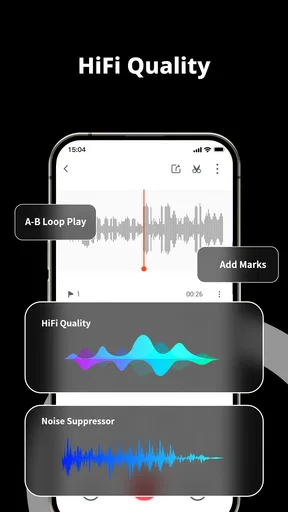
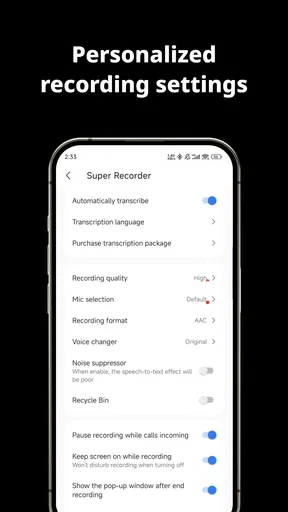
What I love about this app is the range of features packed into such a user-friendly package. You can choose from various recording formats, including MP3, which is super handy if you want to save space on your device. The sound quality is top-notch, and you can even adjust the bitrate if you’re a bit of an audiophile like me.
Format and bitrate are practical trade-offs rather than magic quality switches. A smaller file can be easier to store and send, while a higher-quality setting can preserve more detail at the cost of space. For spoken reminders, conserving storage may make sense; for a music idea that I may revisit, I would avoid choosing a setting solely because it produces the smallest file. I would test a short clip first and listen on headphones before committing to a longer session.
Another cool feature is the ability to tag recordings. This is a lifesaver when you have a ton of audio files and need to find that specific one quickly. You can also organize recordings into folders, making it easy to keep everything sorted.
Those labels become especially helpful after a busy day. I might name a class recording by subject and date, or group interview clips by project, rather than relying on memory to recognize a file later. A useful habit is to add the label while the context is fresh. If I wait until the weekend, several recordings called “meeting” or “idea” can become difficult to distinguish, even if the audio itself is perfectly clear.
Capture sound while doing something else
One of the most practical aspects of this app is its lightweight design, which means it doesn’t hog your phone’s resources. This is crucial when you’re using it on the go. Plus, it can run in the background, so you can multitask without interrupting your recording session. Great for capturing interviews, lectures, or even while you're brainstorming your next big idea.
A realistic example: I am waiting for a bus when a useful line for a presentation comes to mind. I start a recording, say the idea and why it matters, then return to what I was doing. Later, I can replay the note and turn it into a written outline. That works better for me than typing while walking, and the voice can preserve the emphasis or half-formed connections that a few rushed words might miss.
Background recording is also useful when I need to keep notes without staring at the screen, but I would still check that the recording is active before putting the phone away. Notifications, accidental touches, and ordinary distractions can complicate any phone-based task. For a long lecture or an important conversation, I would keep the device stable and periodically check that it is still capturing audio rather than assuming the setup will take care of everything.
And for those of us who are a bit absent-minded, there’s a nifty feature that automatically saves your recordings, even if you forget to hit save. It's like having a safety net for your sound files.
Pass the audio to the next step
Sharing your recordings with others is seamless. You can easily export your files via email, cloud services, or even directly to social media if you’re feeling like sharing that spontaneous jam session. The app supports a wide range of export options, making it versatile for personal or professional use.
In my workflow, exporting is not the finish line; it is a handoff. A student might send a clip to a study group, while a journalist may move an interview recording into a separate editing or transcription workflow. Before sharing, I would replay the beginning and end, confirm that the file contains the intended section, and give it a clear name. That avoids passing along a long recording when a short excerpt would do.
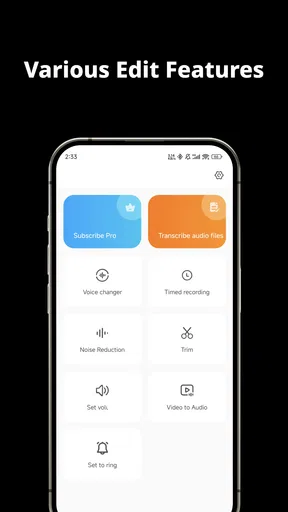
There’s even a built-in audio trimmer. So, if you want to edit out that awkward silence or the bit where your dog decided to bark in the background, you can do it all within the app. No need to download additional editing software.
The trimmer is useful for straightforward cleanup: removing a pause at the start, trimming the tail after a voice note, or making a clip easier to share. I would not treat that as a replacement for a full editor when I need layered audio, detailed sound repair, or precise production control. Keeping the original intact before trimming is a sensible precaution whenever the recording matters, since a short edit can remove context that turns out to be important.
Where a simple recorder is the better choice
Compared with the built-in recorder that comes with a phone, this app’s appeal is the combination of organization, format choices, tagging, folders, and a trimming step in one recording workflow. If all I need is a one-line reminder, the built-in option may be quicker simply because it is already familiar. If I expect to collect many clips and revisit them, the extra ways to sort and prepare recordings can earn their place.
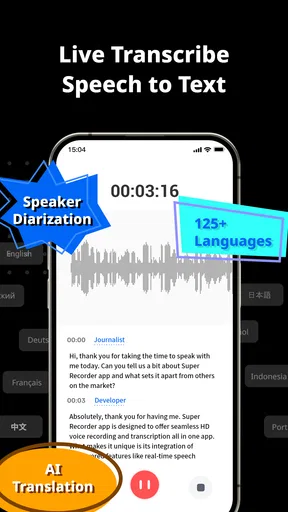
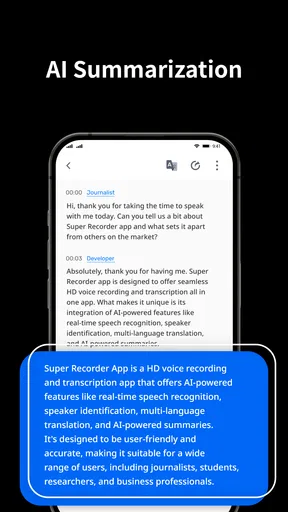
It also occupies a different lane from a dedicated audio workstation. A workstation is better when the job involves complex editing or careful music production; this app is better when the priority is capturing speech or an idea promptly and making a basic handoff. A transcription-focused tool may be preferable if searchable text is the main outcome. The app is described as supporting audio transcription, but I would choose based on the exact transcription workflow I need rather than assume every recording automatically becomes an accurate transcript.
Students, people who dictate reminders, and anyone collecting spoken ideas can get practical value from this style of recorder. It is less suitable for someone who needs studio-grade control, dependable transcription for high-stakes work, or a complete multitrack editing environment. In those cases, I would use a specialist tool for the part that matters most, and keep this app as a quick capture option only if its simpler workflow remains useful.
When the workflow needs extra care
The main limitation is not that recording is complicated; it is that easy recording can encourage people to skip preparation. A phone placed too far away, a loud room, or a file with an unclear name can undermine an otherwise smooth session. Tagging and folders help after capture, but they do not fix weak audio. I would also be mindful of storage when keeping many long recordings, especially if I select settings that create larger files.
There is a privacy and courtesy side to recording, too. Before capturing a conversation, I would make sure recording is appropriate and follow the rules that apply where I am. For personal notes or a public lecture, the decision may be straightforward; for a private meeting, consent and workplace expectations deserve attention. A simple interface makes starting easy, but it does not make every situation suitable for recording.
If you are deciding whether to pay for anything, I would first use the free download for the tasks you already have in mind and note exactly where you hit a limitation. Optional purchases are listed from $1.99 to $39.99 per item, so it is worth checking what a purchase unlocks before confirming it. I would not buy an upgrade just because it appears in the app; the right choice depends on whether that specific capability solves a real problem in your routine.
My take after following the whole workflow
Overall, the Voice Recorder Audio Sound MP3 app is a solid choice for anyone needing a reliable, easy-to-use voice recording tool. It strikes the perfect balance between functionality and simplicity, making it suitable for both tech-savvy users and those just looking for a straightforward recording solution.
Whether you’re a student, a journalist, or just someone who loves capturing audio snippets of life, this app is worth checking out. It’s become a staple on my phone, and I suspect it might just do the same for you.
If you want to give it a try, head over to your app store, download it, and start recording. You never know when that perfect sound bite will come your way!
Pros
- High-quality audio recording.
- User-friendly interface design.
- Supports various audio formats.
- Efficient file management system.
- Offers basic editing tools.
Cons
- Ads can be intrusive.
- Limited cloud storage options.
- No advanced editing features.
- Occasional performance lags.
- Lacks transcription functionality.
FAQs for Voice Recorder Audio Sound MP3
What audio formats can Voice Recorder Audio Sound MP3 save recordings in?
Voice Recorder Audio Sound MP3 primarily saves recordings in MP3 format, which is widely compatible with most devices and platforms. Additionally, the app may offer support for other formats such as WAV or AAC, providing flexibility depending on your specific needs. Always check the app settings for format options.
Does Voice Recorder Audio Sound MP3 allow background recording?
Yes, Voice Recorder Audio Sound MP3 supports background recording, enabling you to continue using your device for other tasks while capturing audio. This feature is perfect for multitasking, allowing you to take notes or browse the web without interrupting the recording process.
Is there a limit to recording duration with Voice Recorder Audio Sound MP3?
The recording duration in Voice Recorder Audio Sound MP3 is typically only limited by the available storage on your device. As long as you have enough space, you can record lengthy sessions, making it ideal for lectures, meetings, or lengthy interviews.
Can I edit recordings directly within the Voice Recorder Audio Sound MP3 app?
Voice Recorder Audio Sound MP3 often includes basic editing features such as trimming, cutting, or merging recordings. These tools allow you to refine your audio files and remove unwanted sections directly within the app, enhancing usability without needing additional software.
How does Voice Recorder Audio Sound MP3 handle audio quality settings?
Voice Recorder Audio Sound MP3 typically offers adjustable audio quality settings, allowing you to choose between high and standard quality recordings. Higher quality settings provide clearer audio but will consume more storage space. Users can select the appropriate setting based on their needs and storage availability.


